
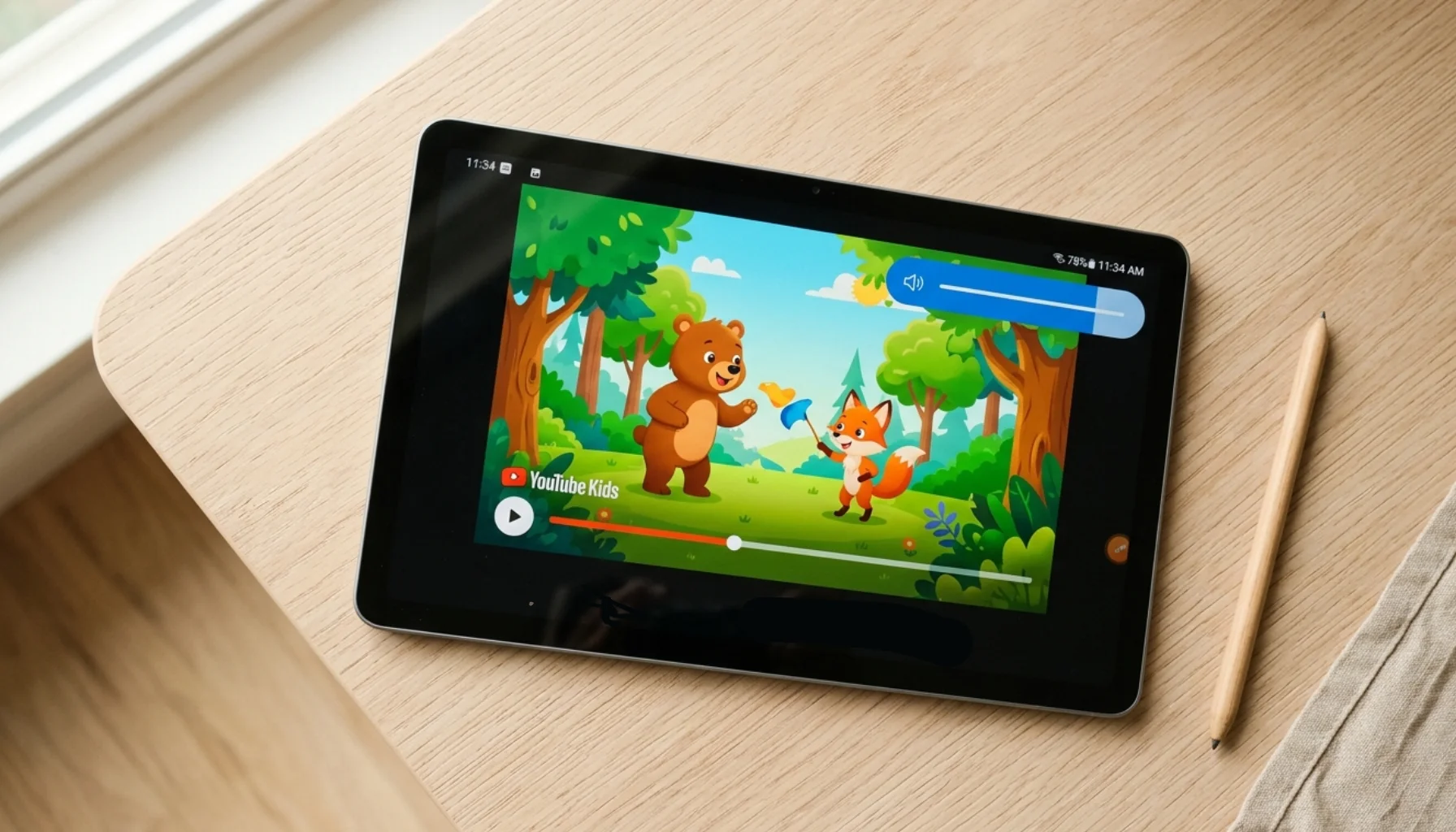
Quick summary:
- Android (on Samsung and a few other brands) has a built-in setting to cap headphone and Bluetooth volume — useful for hearing protection, but it doesn’t touch the device’s loudspeaker.
- Native options also require you to have the device in your hand every time you want to change the limit.
- For the everyday “turn that tablet down” problem — videos, games, and speakerphone playing through the built-in speaker — third-party apps like Kids Feel Secure let you cap and adjust speaker volume remotely from your own phone.
If you’ve ever yanked a phone away from your kid because a YouTube video was blasting at full volume, you already know the problem. Loud audio can permanently damage young ears, and kids will happily crank the volume to the top without thinking twice. The harder question is what parents can actually do about it on Android.
Below is an honest look at how to limit volume on Android for kids: what’s built in, what isn’t, and what to do when the native options fall short.
Native Android Volume Limit Options
Android’s built-in volume controls for kids are surprisingly thin, and what’s available depends heavily on your phone’s manufacturer and Android version.
Media Volume Limiter (Samsung and some others)
If your child uses a Samsung Galaxy phone or tablet, you have the most useful built-in option:
- Open Settings > Sounds and vibration > Volume
- Tap the three-dot menu in the top-right corner
- Select Media volume limit
- Toggle it on, drag the slider to your maximum, and set a PIN
This caps media volume (videos, music, games) and locks the setting behind a PIN. A few other manufacturers offer something similar, but stock Android (Pixel) and many brands don’t include it at all.
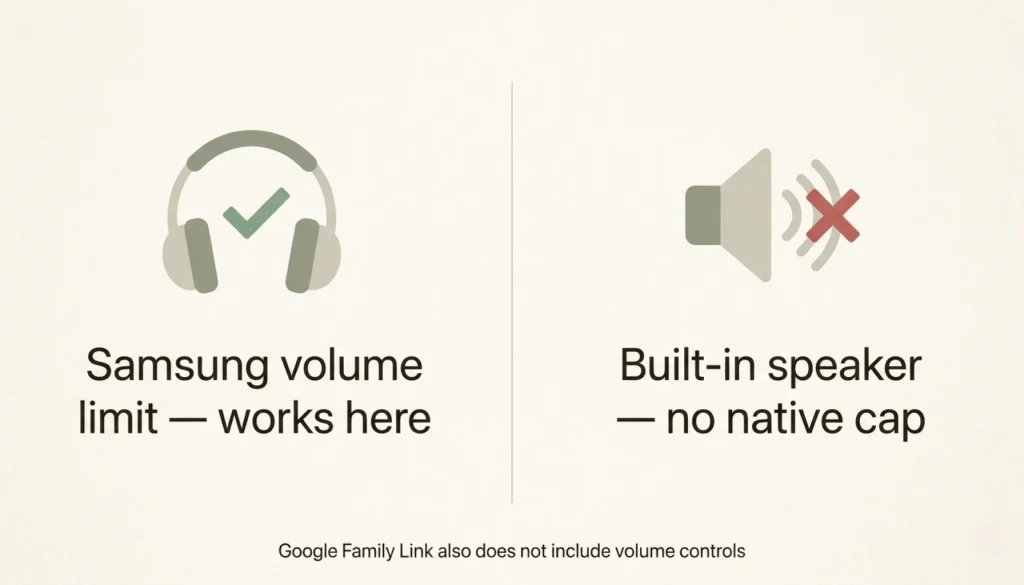
Important catch: Samsung’s media volume limit only applies when the device is connected to headphones or a Bluetooth speaker. It doesn’t cap the device’s built-in loudspeaker. So it’s useful for protecting your child’s hearing when they’re using earbuds, but it does nothing about the tablet blasting cartoons across the living room.
Google Family Link
Family Link is Google’s official parental control app, and it’s powerful for screen time, app approvals, and content filtering. But here’s the honest truth on volume: Family Link does not let you set or limit the volume on your child’s device. It controls what your child can install and how long they use apps, not how loud those apps can be.
The Gap: The Loudspeaker Problem
Here’s the scenario native Android has no answer for: your kid is on the couch with a tablet, no headphones, watching YouTube at full blast through the device speaker. Samsung’s media volume limit won’t help — it only kicks in when headphones or Bluetooth are connected. Family Link won’t help. Most parental controls volume Android guides quietly skip over this — there’s no built-in setting that caps how loud the device plays through its own speaker.
And even if there were, native settings assume you have the phone with you when you want to make a change. Parenting doesn’t work like that. Your kid is in the next room. They’re at grandma’s house with the tablet. They’re using speakerphone in the back seat while you’re driving. In every one of those moments, you can’t reach into Settings and turn anything down.
That’s the gap a kids volume limiter app Android needs to fill.
Kids Feel Secure: Remote Speaker Volume Control
Kids Feel Secure is a parental app built around the things native Android can’t do. The standout feature for this problem: you can remotely control and limit the speaker volume on your child’s Android device from your own phone.
A few specifics worth calling out:
- Speaker volume — the part Android won’t touch. This caps the device’s built-in loudspeaker, which is exactly where the loudest, most disruptive audio comes from: videos played out loud, games without headphones, speakerphone calls.
- Remote, not local. You don’t need your child’s phone in your hand. Open the parent app, adjust the limit, done.
- Practical for real situations. Lower the volume during homework time, cap it before bed, or quiet things down when you’re driving and the back seat is too loud.
Think of it as the missing piece. Use Samsung’s media volume limit (if available) to protect your child’s hearing through headphones. Use Kids Feel Secure to handle everything that comes out of the speaker.
Try Kids Feel Secure
If you’ve been searching for how to limit volume on Android for kids and felt like the built-in tools weren’t enough, you’re not wrong — they aren’t. Download Kids Feel Secure to add remote speaker volume control to your toolkit and stop chasing your kid around the house to turn the volume down.
Get Kids Feel Secure →
Leave a Reply